
Things I do to increase Windows drive performance
Everyone knows how much I love to play with and micro-optimize programming code. But what little tricks do I do to help with Windows drive performance on my computers/laptops?
As a precursor, I’ve started and making all these changes since Windows 10. I have not conducted benchmarks to see how much, if at all, there’s actual speed increases or drive bottleneck reductions. I’ve also never taken any “before” vs “after” stats. However, I do know that before I did any of these changes, my laptops would have mysterious pauses here and there.
Aren’t those annoying? We’ve all experienced them – you double-click and Windows sits there a few seconds like it’s asking, “Sorry. I missed that. What did you do again?”
With that out of the way, let’s get started with some simple tricks I use to help my Windows laptops purr right along.
Creating and using a Ram Disk
Did you know that your RAM is approximately 200 times faster than an HDD and at least 100 times faster than an SSD?
RAM Disk Software is a type of application that temporarily converts your RAM into a secondary storage device
This means you can retrieve the data stored in RAM at incredibly fast speeds compared to that stored on any of your disks.
Here is a site that bench marked Ram Disk speeds. There’s at least 11 to choose from!
After installing ram disk software, I like to have separate sub-folders created within the ram drive:

Note that not all RAM Disk software allows for this nifty feature!
Generally I create individual folders for:
- BrowserCaches
- I have almost all web-browsers redirect their caches to the ram disk.
- Downloads
- any programs that allow me to set a default download location I redirect here
- Skype and Teams Cache
- These two write quite a bit of data to cache, which I personally find pointless. So again, redirected straight to my ram disk
- Temp
- All my Windows “Temp” and “tmp” Environment variables are redirected here, both for the system and individual users.
- Any other programs like Vegas Pro, Adobe, etc, that allow users to configure “scratch” disks
- Again straight to my ram drive.
- Razer Synapse
- Razer’s Synapse software is notorious for lots of reads and writes! If you use their software with any of their hardware, consider implementing links to write to your RAM Disk instead of local SSD!
Most of my computers have at least 32GB memory with 6-8GB of that allocated for ram disk usage; if you have a machine with 16GB memory, a 2-4GB ram disk is a good size to start with.
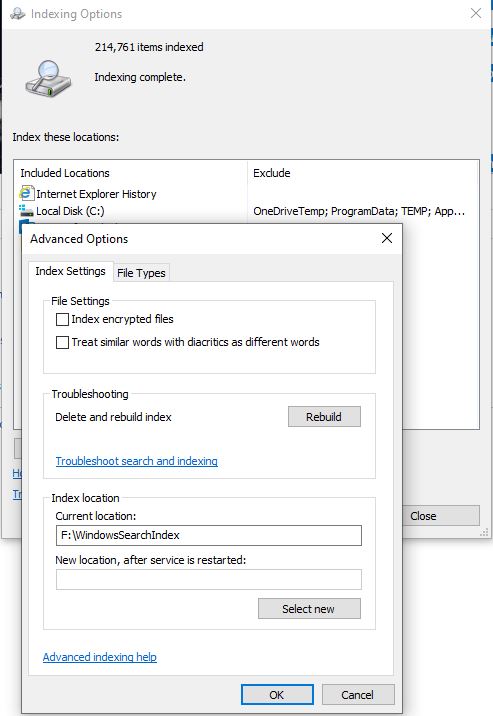
Redirect Windows Search Indexing to a second drive
If you have the luxury of a second physical (not just logical) drive, move the Windows Search Index there. That should help reduce bottlenecks your primary Windows drive may be encountering. In turn, your overall Windows drive performance should increase.
Every time a file that is indexed is created, modified, or deleted, windows has to update the index database. This could potentially involve a significant amount of read/write operations on your primary drive. Now imagine at the same you’re doing other things like run programs, browse the web, or whatever.
Drives only have a certain amount of bandwidth they can handle due to their drive interface. So why clog up the primary drive’s bandwidth with all those side operations?
By default, the search index data files are stored in the:
%ProgramData%\Microsoft\Search\Data
folder. To change it through Windows Control Panel, follow these steps.
On this computer, my search index location has been relocated to a second, lesser used SSD drive:
Redirect Windows “TEMP” and “TMP” environment variables to a second drive (or ram disk)
Have you ever looked in your C:\Windows\Temp folder and discovered the ‘mess’ that’s in there? Or how about your user profile temp folder? Usually located in a place similar to the following:
C:\Users\ [your windows login id] \AppData\Local\temp
Windows is constantly reading/writing files in the temp folders. To make matters worse, it doesn’t perform any sort of nice ‘clean up’ process when it’s done. That is, they’re left there, sucking up space.
Windows isn’t the only guilty party here either. Lots of other software packages write files to the ‘temp’ folders and don’t clean up after themselves.
With all that reading/writing, your primary drive is going to be kept plenty busy! Unfortunately, your drive will also have a smaller capacity to deliver data when it actually needs to.
What I like to do to increase my Windows drive performance is relocating those temp environment folders to my ram disk. Not only will read/writes be faster, but it also keeps the primary drive free for more important tasks.
Best of all, when you restart your machine, all the files in the temp folder are GONE. You don’t have to worry about any disk cleanups or maintenance! Win-win!

If you don’t have a ram disk, then I would relocate those temp folders to a secondary physical drive.
Move your browser cache file locations
Microsoft Edge. Google Chrome. Mozilla Firefox.
They’re big culprits when it comes to writing all sorts of data to your primary drive. Cache files, cookies, site preferences, histories, and other miscellaneous data.
While some data is pertinent, other data isn’t. For example, cached files. With today’s internet speeds, who cares if the browser has to go out and download a few more 100kb files than it otherwise would if they were cached locally?
What I prefer to do is also relocate all the browser’s cache locations to a second physical drive, or (preferably) to my ram disk for the same reasons as above.
Cache Relocator is for you if you don’t know where or how to relocate your browser cache files.
Here’s mine all set up and configured with everything now using my ram disk as the cache location:

Other ‘guilty’ parties should be moved
There is plenty of other software whose temp, scratch disk locations, or other related folders can and should be relocated from the primary drive to a secondary drive. These include, but are not limited to:
- Microsoft Teams
- Video Editing software with ‘scratch’ or ‘temporary rendered files’ locations
- Adobe Products
- Razer Synapse
A small start to tweaking your system, which should help it to run more efficiently with less primary drive bottlenecks.
Have any other suggestions? I’d love to read them, so put them in the comments below!