
Hide Images in Word Documents using Power Automate
Ever had a situation where you need to hide image placeholders in a Microsoft Word document using Power Automate? It could be because it’s not needed. Or maybe because there’s no associated image to display. Or any other number of reasons.
With the default Power Automate action “Populate a Microsoft Word template”, it’s not currently possible.
However, there is a way to do it with a third party Action.
This post will detail how to hide images in Word Documents using Encodian. This post assumes both basic familiarity with both Encodian and Power Automate.
Ready? Here we go!
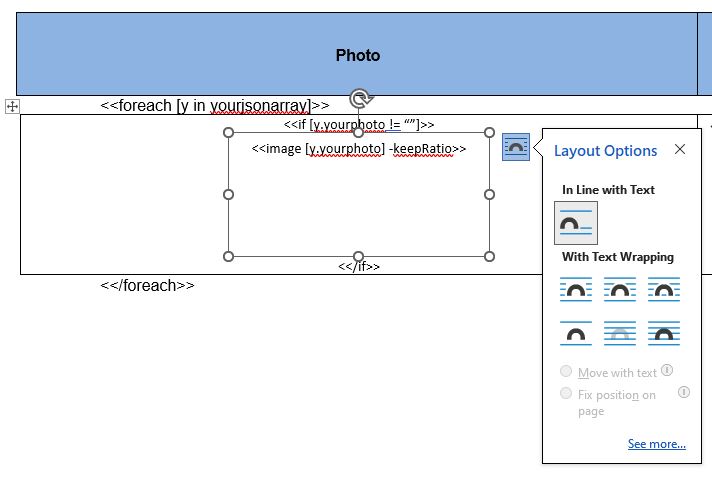
First, edit the Word template to add an image token. Note that this is not the same as a normal image placeholder.
When using the image token you must add the token inside a text box. To do so, follow the instructions:

Repeating Sections
If the images are within a table or area that’s going to repeat, adapt the following set up to fit your template:
Update the Power Automate flow
Once the template set up is complete, the Power Automate flow will need to be updated to capture the images’ JSON data. The image data for this example is coming from a Dataverse table:
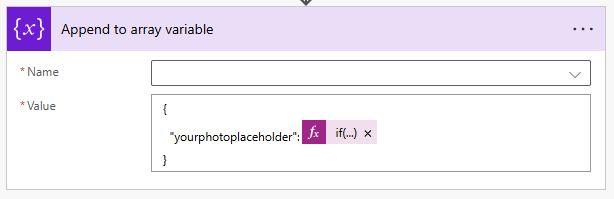
The dynamic code need is as follows:
|
1 |
if(equals(items('Apply_to_each')?['yourphoto'],null),'',items('Apply_to_each')?['yourphoto']) |
What this does is check your image data. If it’s null, set the data to blank “” for parsing within the Word template; otherwise it’ll populate with the base64 encoded image data.
Configure the Encodian “Word – Populate” action
Configure the Encodian “Word – Populate” workflow action with your JSON data.
Now test the workflow. Hopefully when the Word document is rendered, the results will be as expected.
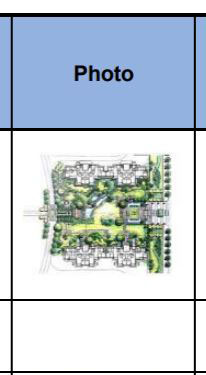
In the image below, my first row had an image; the second row did not, and the image placeholder is hidden:
That’s all that is needed to Hide Images in Word Documents using Power Automate
It is easily adaptable to fit your specific needs.
Happy Power Automate building!
Please leave comments if you have any Power Automate tricks or tips of your own to share!